Document Type | Technical Information
Category | Interface/Integration
Applicable Product Version | 6FS06
Document Number | TIITI019
Overview
This guide explains how to connect to the Tibero server in a Windows environment using the Oracle Call Interface (OCI) library.
Note
Testing was conducted in the following environment.
Method
OCI Installation
1. Copy OCI Libraries
Copy the library files included in the Tibero binary (%TB_HOME%binlibtboci.lib, %TB_HOME%binlibtboci.dll) to the client Windows machine where you want to use them.
CautionOnly the libraries corresponding to the 32/64 bit version of the Tibero binary are built. Copy from the binary with the same bitness as the platform bit of the application you want to compile.
2. Copy Oracle OCI Headers
$ORACLE_HOME/rdbms/public folder's .h files should be copied to the client Windows machine where they will be used.3. Add Environment Settings
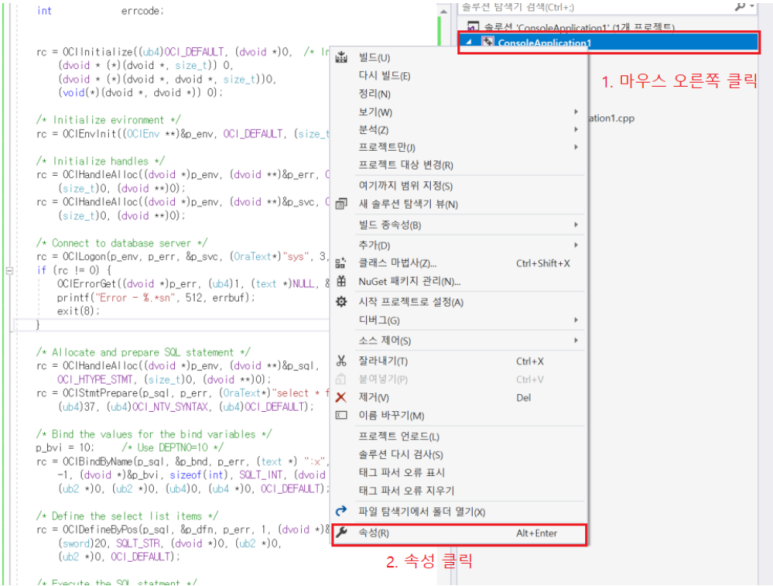
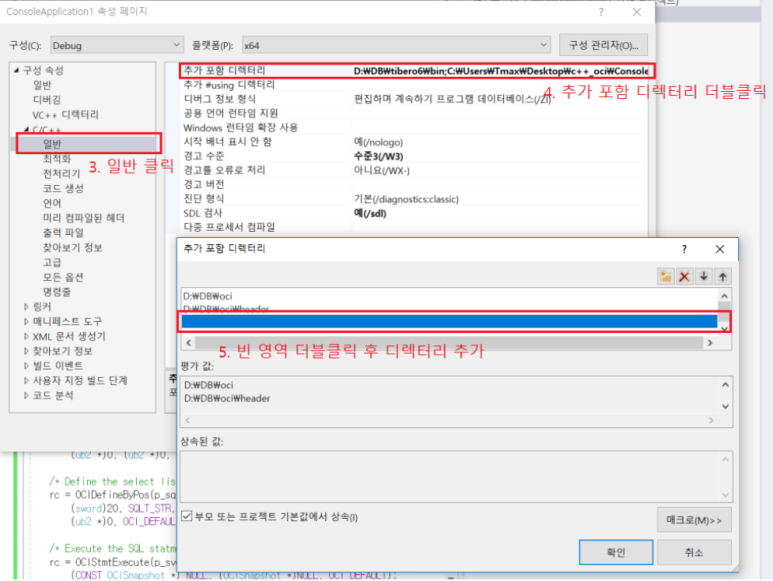
1) Add the library and header file directories in the property page under [Project] - [Properties] - [C/C++] - [General] tab.
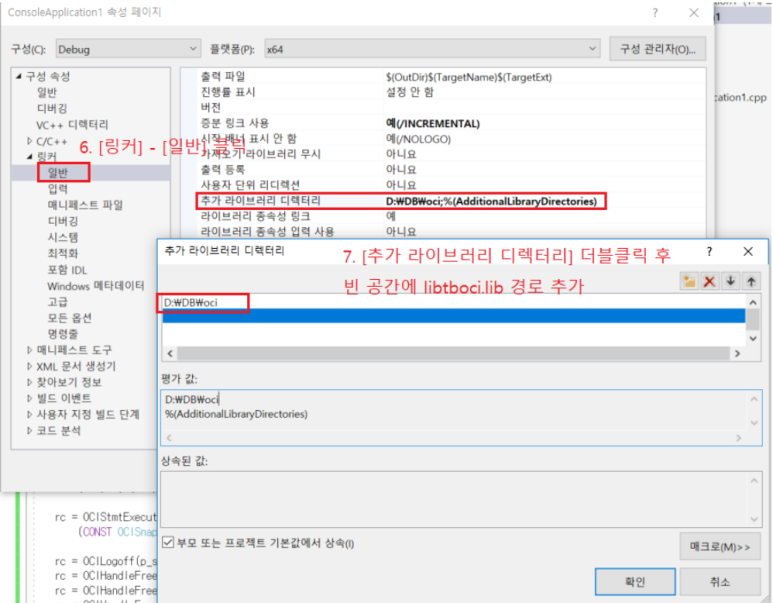
2) Set additional library directories under the [Linker] - [General] tab.
3) Add the Tibero OCI library to dependencies under the [Linker] - [Input] tab.
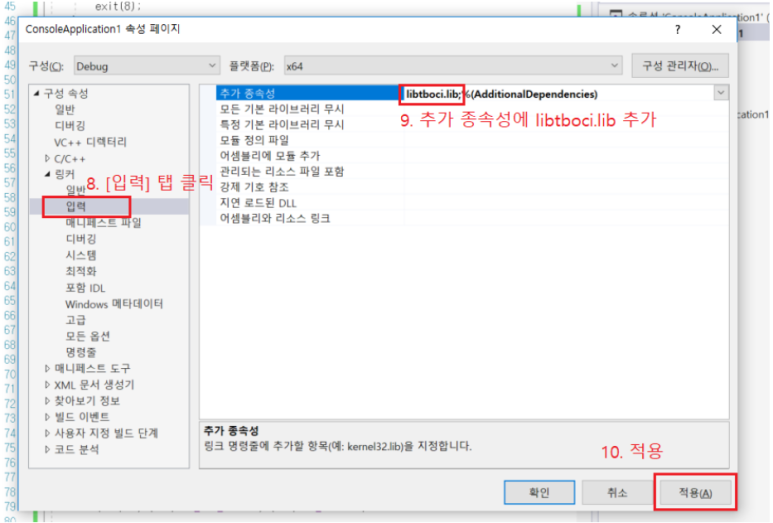
Working with Tibero Using OCI
1. Add OCI Header
#include “oci.h”
2. Initialize OCI Objects
static OCIEnv *p_env;
static OCIError *p_err;
static OCISvcCtx *p_svc;
static OCIStmt *p_sql;
static OCIDefine *p_dfn = (OCIDefine *)0;
static OCIBind *p_bnd = (OCIBind *)0;

int p_bvi;
char p_sli[20];
int rc;

OraText errbuf[100];
int errcode;


rc = OCIInitialize((ub4)OCI_DEFAULT, (dvoid *)0, /* Initialize OCI */
   (dvoid * (*)(dvoid *, size_t)) 0,
   (dvoid * (*)(dvoid *, dvoid *, size_t))0,
   (void(*)(dvoid *, dvoid *)) 0);

/* Initialize environment */

rc = OCIEnvInit((OCIEnv **)&p_env, OCI_DEFAULT, (size_t)0, (dvoid **)0);

/* Initialize handles */

rc = OCIHandleAlloc((dvoid *)p_env, (dvoid **)&p_err, OCI_HTYPE_ERROR,
   (size_t)0, (dvoid **)0);
rc = OCIHandleAlloc((dvoid *)p_env, (dvoid **)&p_svc, OCI_HTYPE_SVCCTX,
   (size_t)0, (dvoid **)0);
SQL
3. Connect to Tibero Database
Enter account and database information.
NoteDepending on the version, string data (char) can be compiled by casting to the Oracle defined type (OraText).
/* Connect to database server */

rc = OCILogon(p_env, p_err, &p_svc, (OraText*)"sys", 3, (OraText*)"tibero", 6,
(OraText*)"tibero", 6);

if (rc != 0) {
OCIErrorGet((dvoid *)p_err, (ub4)1, (text *)NULL, &errcode, errbuf, (ub4)
sizeof(errbuf), OCI_HTYPE_ERROR);

 printf("Error - %.*sn", 512, errbuf);
 exit(8);
}
4. Preprocess SQL (select)
/* Allocate and prepare SQL statement */

rc = OCIHandleAlloc((dvoid *)p_env, (dvoid **)&p_sql,

   OCI_HTYPE_STMT, (size_t)0, (dvoid **)0);
rc = OCIStmtPrepare(p_sql, p_err, (OraText*)"select * from dual",

   (ub4)37, (ub4)OCI_NTV_SYNTAX, (ub4)OCI_DEFAULT);
5. Execute SQL (select) and Output Results
/* Execute the SQL statement */

rc = OCIStmtExecute(p_svc, p_sql, p_err, (ub4)1, (ub4)0,
   (CONST OCISnapshot *) NULL, (OCISnapshot *)NULL, OCI_DEFAULT);


while (rc != OCI_NO_DATA) { /* Fetch the remaining data */
     printf("%s", p_sli);
     rc = OCIStmtFetch(p_sql, p_err, 1, 0, 0);
}
6. Preprocess SQL (insert)
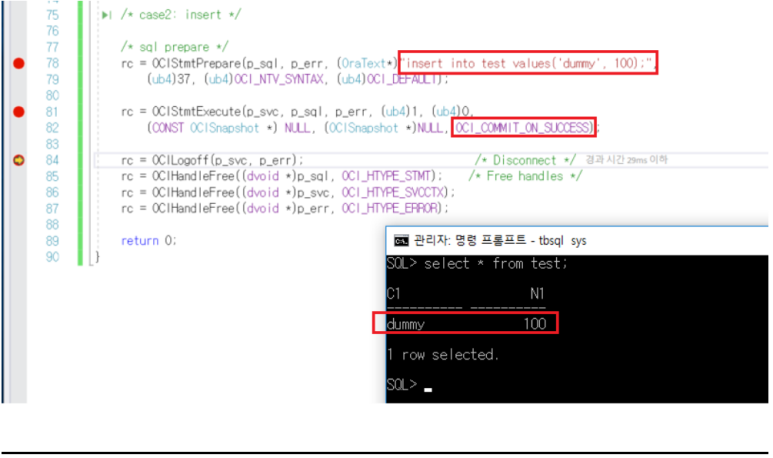
/* sql prepare */

rc = OCIStmtPrepare(p_sql, p_err, (OraText*)"insert into test values('dummy', 100);",
   (ub4)37, (ub4)OCI_NTV_SYNTAX, (ub4)OCI_DEFAULT);
7. Execute SQL (insert) and Check Result
When set to OCI_COMMIT_ON_SUCCESS mode, the query will automatically commit if applied successfully.
rc = OCIStmtExecute(p_svc, p_sql, p_err, (ub4)1, (ub4)0,
  (CONST OCISnapshot *) NULL, (OCISnapshot *)NULL, OCI_COMMIT_ON_SUCCESS);